Microsoft Teams app

MyFAQ Assistant for Microsoft Teams Answers with sources, right in the chat.

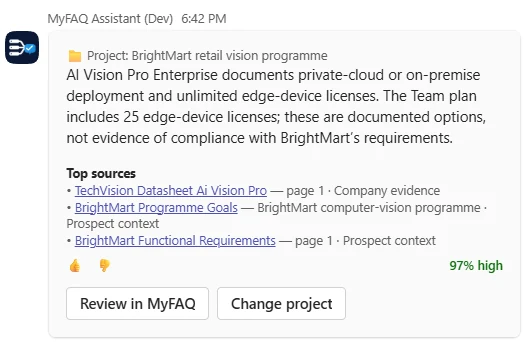
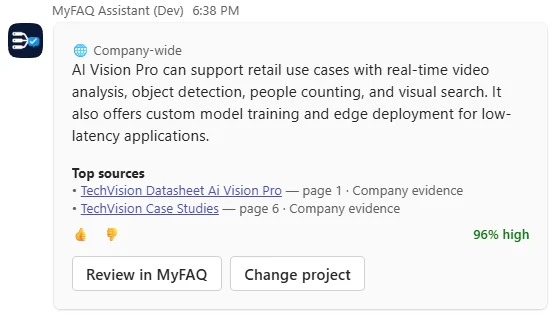
Ask your approved knowledge base the way you ask a colleague. MyFAQ answers in Teams with the sources behind every answer, a confidence score, and only the content you are allowed to see.

  • Company-wide answers right in the chat
  • Top sources with page references
  • Confidence indicator and feedback
Personal chat

A private assistant with conversation memory.

Channels and group chats

Mention MyFAQ in a thread to answer from a project you choose.

Any compose box

Search MyFAQ and insert an approved answer in any message.

Notifications

Review, document and billing events as interactive cards.

02Upload

Add a document

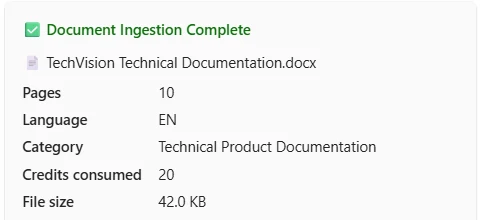
Bring new evidence into your knowledge base.

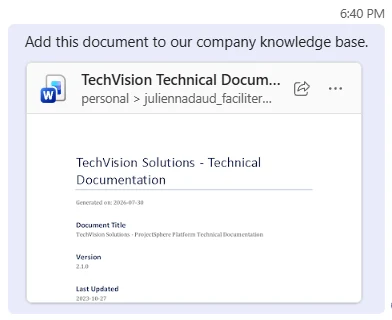
  • Attach a file in the chat
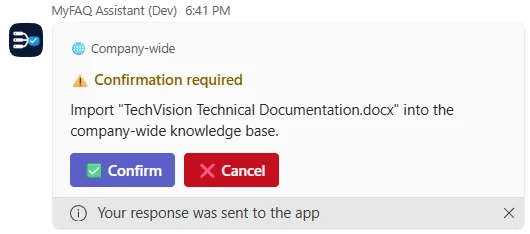
  • Confirm before anything is imported
  • Follow processing to completion

The new document goes through the same AI processing as a portal upload: language and category detection, a description, and extracted Q&A, so it can answer the next question.
03Projects

Work in project context

Bring company evidence to your team.

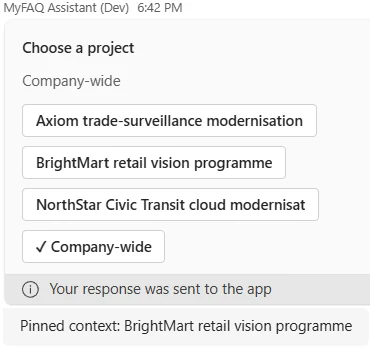
  • Pick a project with /projects
  • Ask questions in that project's context
  • Company evidence and prospect context labelled

Your project choice is remembered for you in that conversation. In shared channels, answers use approved company evidence only, and access is checked again for every question.

04Documents

Find the right document

Open the evidence behind your work.

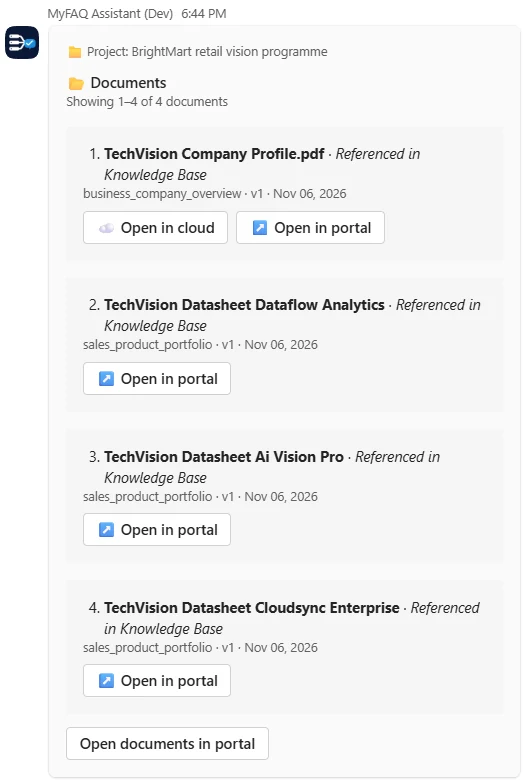
  • Ask for documents in plain language
  • See knowledge-base status and version
  • Jump straight to the portal or cloud file

Documents synced from SharePoint and OneDrive open at their source, so the team works from the current file instead of a copy.

05Review

Keep reviews moving

See what needs your attention.

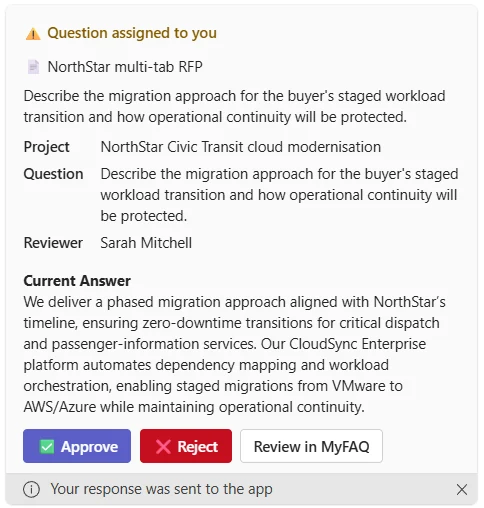
  • Questions assigned to you, in Teams
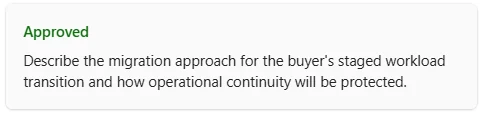
  • Approve or reject from the card
  • Or continue the review in MyFAQ

Type mytasks to list the questionnaires waiting for your review, earliest due date first, each linking to the exact review screen.

Also in Teams

Turn the chat into a working surface for your knowledge

Beyond answers, the assistant helps your team close knowledge gaps and stay on top of review work.

Rate answers and escalate gaps

Rate any answer with a thumbs up or down. When an answer is weak or rated down, send the question to the right knowledge owner in one click, so gaps become knowledge-base work.

Search MyFAQ from any message

In Teams, search the knowledge base from the compose box and insert an approved answer with its source. It is retrieval only, so there is no generated text and no AI cost.

One thread, one topic

In a channel, start a new post for each topic and mention MyFAQ. Each thread keeps its own project choice and conversation history.

A weekly digest, only when it matters

Every Monday, a short summary of the review questions assigned to you and any of your documents that failed to process. Nothing is sent when there is nothing to act on.

Notifications you control

Get review, document and billing events as interactive cards in Teams and Google Chat, and choose which ones you receive from your notification preferences.

Speaks your team's language

Replies and cards follow your Teams language in English, French, German, Spanish, Italian and Portuguese.

Governed by design

The same rules as the MyFAQ portal, in every chat

The Teams app is not a shortcut around your governance. It uses the same knowledge base, the same access rules and the same AI engine as the web portal.

Each person's own access

Your Teams identity is linked to your MyFAQ account through Microsoft sign-in. Answers only use documents your confidentiality clearance allows.

Evidence you can check

Every answer lists its sources and a confidence score. When the knowledge base has no relevant content, the assistant says so instead of guessing.

Safe in shared channels

In channels the assistant answers only when mentioned, from a project you chose and that you can access, using approved company evidence only. Buyer context stays out of shared answers.

Get started

Up and running in three steps

  1. 1

    Sign in with Microsoft

    Use Sign in with Microsoft on MyFAQ so your Teams identity links to your account automatically.

  2. 2

    Add MyFAQ Assistant to Teams

    Your Teams administrator adds the app for your organisation, then add it to the teams that need it.

  3. 3

    Ask your first question

    Open a chat with MyFAQ Assistant and ask. Type help at any time to see the commands.

Bring your knowledge base to where your team already works

The Teams app is part of the MyFAQ Microsoft 365 integration, alongside SharePoint and OneDrive sync and Microsoft sign-in.